💾 Useful Software
Office software
LibreOffice with ODF formats (odt, odp) is the preferred Office suite for use in the lab. Do not use Microsoft Office (and associated formats: docx, pptx) for internal documents unless you absolutely have to.
- For spreadsheets, use of
xlsxfiles is fine, as long as the formula language is English and you avoid macros. - For presentations, avoid excessive animations.
- For papers, you should be using LaTeX.
When sending documents for review to Peter or to project partners, send them as PDF files, so that formatting is correct on both ends. This includes:
- conference abstracts,
- poster drafts,
- presentation drafts: avoid animations.
Templates will be updated to odt/odp formats shortly.
VS Code
If you’re on Windows, you probably want to use VS Code to write code and papers. VS Code is an integrated development environment (IDE) with support for many programming languages (including Python), documentation frameworks (Quarto, LaTeX, sphinx), syntax higlighting, jupyter notebook support, and a lot more with its excellent extensions.
If you have git installed, VS Code can make working with git easier, by providing a nice user interface to help you putting syncing your changes with a forge (GitHub, GitLab, etc.).
VS Code is also really good to edit and preview markdown and LaTeX documents, and with Quarto installed, it can build and preview whole websites.
- you are new to programming,
- you have not used LaTeX before,
- you are not familiar with other IDEs already.
Peter’s recommended extensions are:
- LaTeX Workshop (by Jame Yu) for syntax highlighting and automatic previews of LaTeX documents,
- Python (by Microsoft) for a better Python support in VS Code,
- Jupyter (by Microsoft) for a better support of Jupyter notebooks within VS Code,
- Quarto (by Quarto) for easier work with Quarto documents.
Extensions in VS Code can slow your computer and/or your network down significantly. They can also run other programs without you knowing. Be careful and if in doubt, ask others!
Zotero
Zotero is an open-source reference manager. It’s incredibly useful to track scientific literature. It can store pdf files and annotate them, organise your library into collections, and lets you add citations into Word, Quarto, or LaTex documents.
This applies to all of your scientific documents, from your research proposal onwards. It is much easier dealing with modifying references during editing if everyone uses the same tool!
To get most out of Zotero, you should set up the following:
- use the Better BibTex plugin, which allows you to pin citation keys for every reference, and automatically export collections as
.bibfiles, - use the WebDAV interface in your TUB Cloud to back-up and synchronise your library on the cloud,
- join the ConCat Zotero group,
- set up a shared “group” library with Peter to easily exchange literature.
LaTeX
LaTeX is a fairly traditional way of writing scientific documents. Instead of writing the text of the document and formatting it at the same time (such as in Word), in LaTeX you write the text and headings, and place the figures / tables using special commands. The formatting in LaTeX takes care of itself – at least, in principle.
The advantages in using LaTeX over something like Word are:
- bibliography is handled via BibTex, which is supported by Zotero,
- writing maths equations in LaTeX is as easy as it gets,
- formatting is often more consistent and sometimes less fussy,
- you generally end up sending
.pdfs for review, not editable.docxfiles.
For papers, use of LaTeX is strongly preferred to any other word-processing software. For easier collaboration and review, consider using LaTeX together with Overleaf.
Local LaTeX usage
If you’re using VS Code, you should install the LaTeX Workshop extension and follow the installation instructions; i.e. install texlive.
LaTeX via Overleaf
You should be able to register on Overleaf with your ORCID. If you then confirm your TU Berlin email address (Account -> Account settings -> Emails and affiliations), you will be upgraded into the fully-featured version.
Consider also linking up your Overleaf account with your Zotero library for reference management (Account -> Account settings -> Zotero integration).
Quarto
Quarto is an excellent document editing framework, combining the best parts of markdown (easy syntax), LaTeX (maths support), with other modern tools like for making flowcharts (using mermaid) and interactive code (via jupyter) and graphs (e.g. plotly). Quarto is what we’re using to write this manual and also the teaching materials, as it can be built automatically into a nice website.
In principle, everything that is a markdown file (.md) can be rendered using Quarto; in practice the Quarto .qmd files contains some extra Quarto-specific metadata.
Unfortunately, support for Quarto files in manuscript submission systems is not quite there yet, which is why we’re using LaTeX.
git
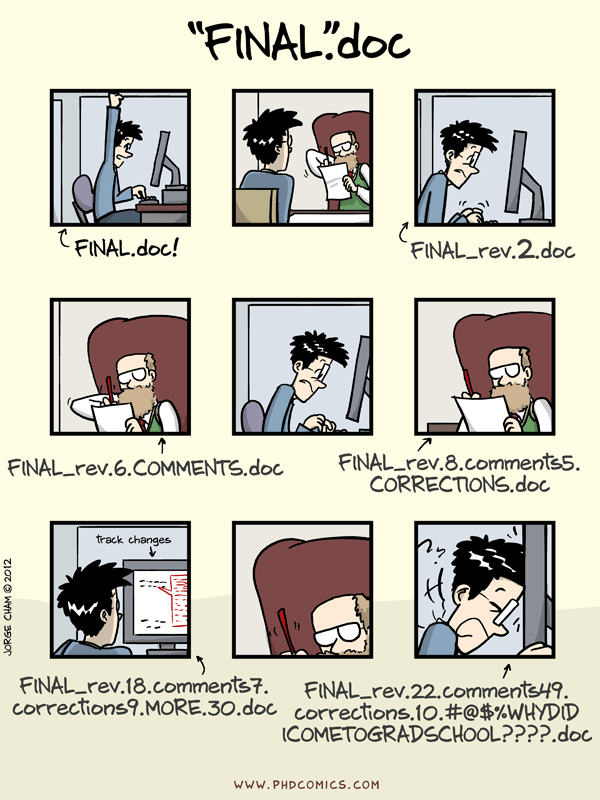
git is a version control system. In short, it is a tool developed by programmers to track changes in code (i.e. text files). This means you avoid having the below situation, and instead you just have one copy that has it’s history tracked. This means git is very useful to track versions of documents (manuscripts, reports, this manual) and code. For other file types (videos, photos, audio), it can still do the job, but it’s not as efficient or useful – for example, it cannot highlight changes in those files.
GitHub (and GitLab) are so-called forges – websites, which let you work with git (and other tools like git), in a collaborative way. Often, git and GitHub are used synonymously, but there is a big difference: GitHub is a website on the internet, git is software managing files on your computer.
- the Software Carpentry lessons on git,
- the GitLab documentation.
Jupyter notebooks
Jupyter notebook is an interactive web-based computing platform. It allows you to write code and execute it in small chunks called “cells”, annotate it using documentation in markdown and equations in LaTeX, and inspect and interact with your data via various libraries.
We strongly recommend that you do all your data analysis using Jupyter notebooks, as they are much more reproducible than tools such as Excel or Origin, can be annotated with metadata compared to plain scripts, and can be attached as supporting information in your publications.
It is possible to use Jupyter notebooks from within VS Code using the plugin, or stand-alone, with just a web browser. All packages in your Python environment should be available within your Jupyter session (see also conda).
If you have never installed or used Jupyter, feel free to ask your more senior colleagues or Peter.
conda
conda is a way of managing multiple Python installations and packages on your computer. It comes in multiple flavours (such as the full Anaconda, or a much smaller miniconda version), but in practice it lets you:
- have multiple different versions of Python installed in isolated blocks called environments,
- have various packages and libraries installed within these environments,
- avoid conflicts between incompatible versions of libraries.
VS Code has a good support for work with conda environments. Support for Jupyter notebooks can be also installed into these environments.
The full Anaconda installer is one option, providing a nice graphical user interface for managing your environments, launching Jupyter notebooks in those environments, and installing common packages.
On the other hand, Peter uses miniconda, as it is much smaller, but integrates well with VS Code.
Matrix
Matrix is the chat service used by TU Berlin as of May 2026. You use your TU Berlin account to log in. The official TU Berlin guide recommends using Element as a client, which you can access using a web interface on https://chat.tu-berlin.de/, as well as download as a cross-platform app.
Within the TU Berlin Matrix server, we have our own ConCat “Space”, in which you should be able to find the ConCat: General chatroom. In case of any issues, contact Peter.